Review or edit an existing order
Update eligible orders while preserving invoice history.
2 min read · 5 steps
Where to go
Finance → Orders
Step by step
- 1
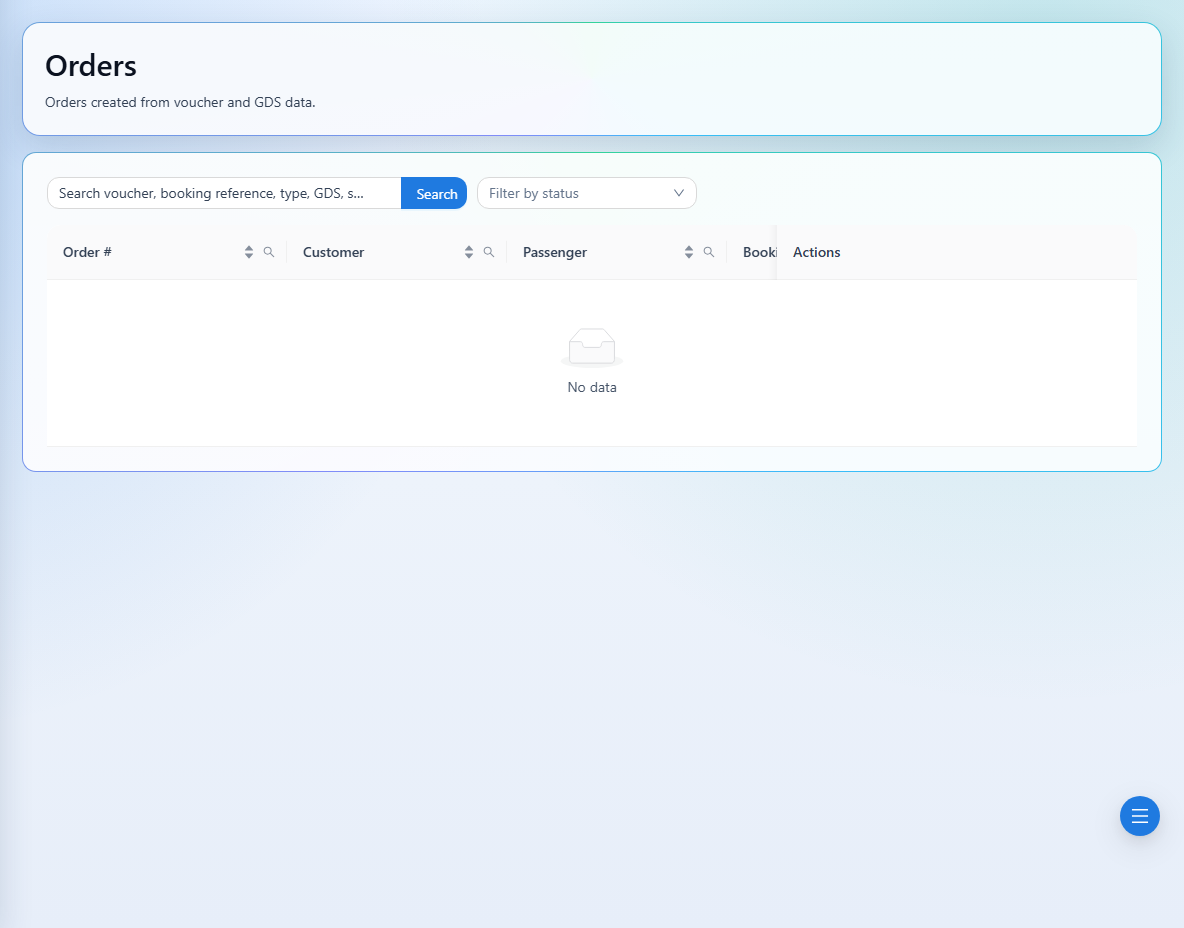
Find the order in Finance → Orders and open its voucher details.
- 2
If editing is available, open the edit action and make your changes.
- 3
Review passengers, services, vendors, prices, and totals before saving.
- 4
If the order already has a live invoice, check whether editing cancelled that invoice and created a replacement order.
- 5
Review the replacement order and invoice it manually when needed.
See it in the workspace
Actual portal screens. Private values are hidden where needed. Open an image to see it at full size.
Good to know
Editing an invoiced order may cancel its current invoice and create a replacement order. Always check the result before sharing or collecting payment.
Was this guide helpful?