Invite your team and understand roles
Create and maintain company users with the access they need for their work.
Profiles → Company Users
Step by step
- 1
As a company owner or admin, open Company Users and check the user limit before adding a user.
- 2
Enter Name and Email, choose the appropriate Role, and set and confirm a temporary password. Save after reviewing the details.
- 3
Use Sales for operational sales work; use Accounts for invoices, receipts, payments, and reporting. Admin provides broader company management access.
- 4
Use the available edit action to update name, email, role, or Active/Inactive status for an eligible user.
- 5
To change a password from the edit form, enter and confirm a new password of at least 8 characters. Leave it blank to retain the current password.
- 6
Review confirmation messages before deactivating or removing a user: the affected active sessions may be revoked.
See it in the workspace
Actual portal screens. Private values are hidden where needed. Open an image to see it at full size.
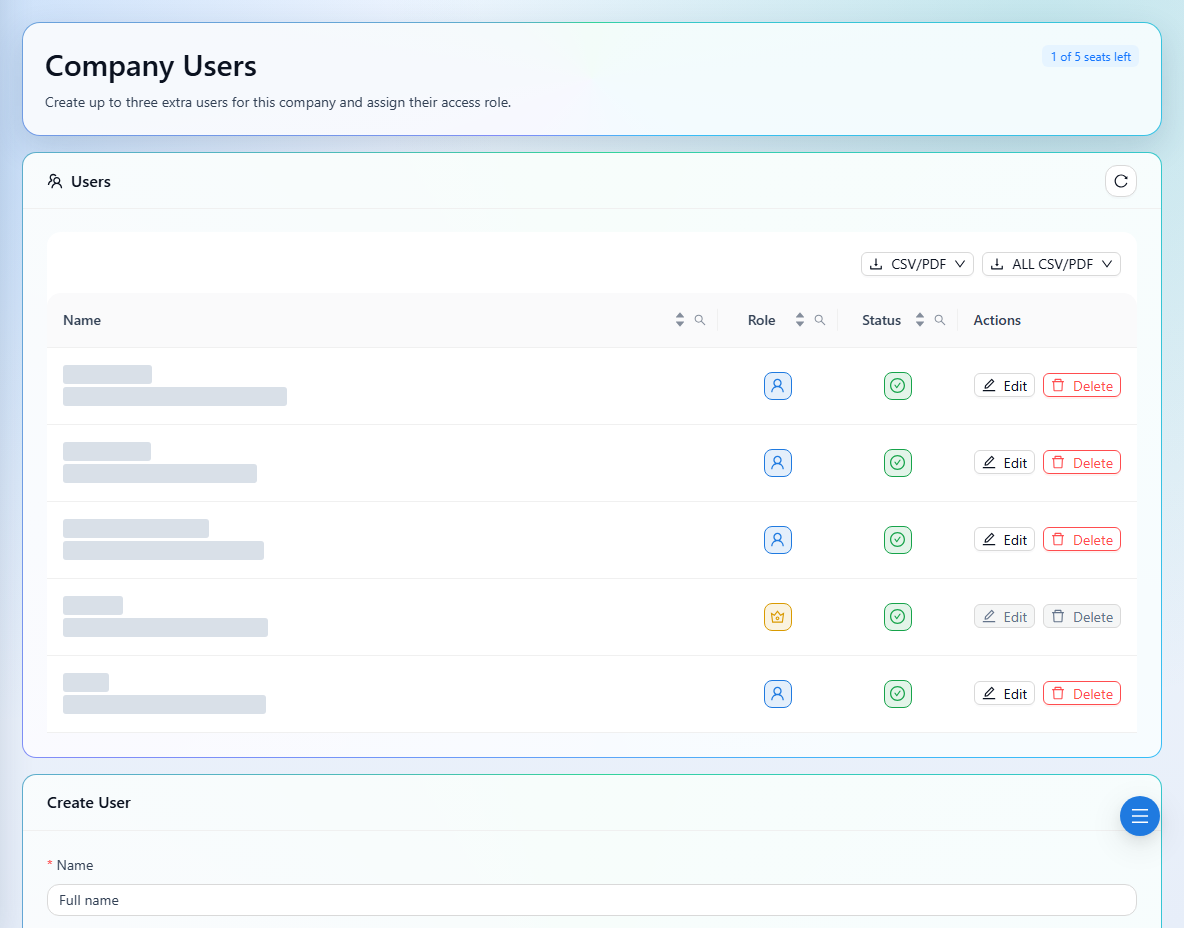
Available management actions depend on your role and the selected user. Check account status and role if a team member cannot sign in or open a page.